
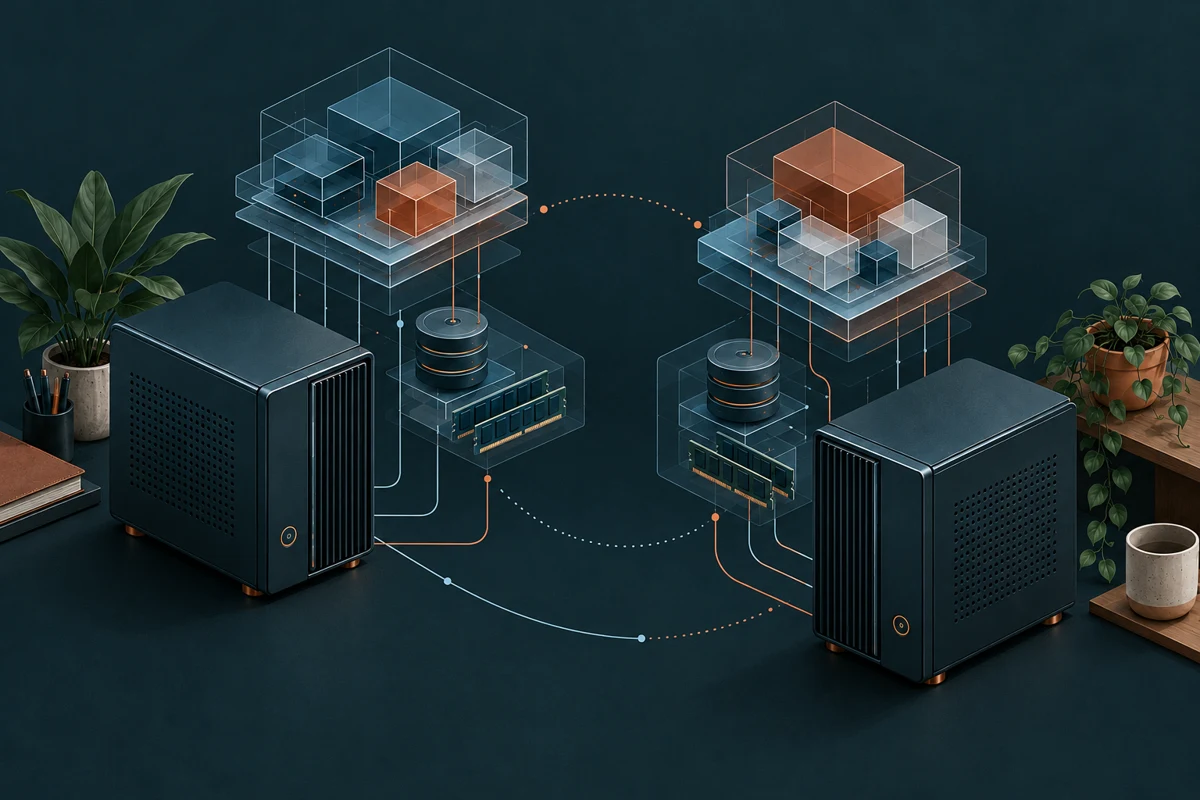
A server starts with one useful service. Then comes another, followed by a database, a backup destination, a web application and something that was supposed to be a weekend experiment. At some point, the question becomes how to keep all of them manageable.
I have moved my services onto two Proxmox environments: one for professional work and one at home. They share the same virtualization platform, but carry different workloads. Keeping those roles separate gives me a clearer view of what each machine is doing and what depends on it.
Two hosts, different jobs
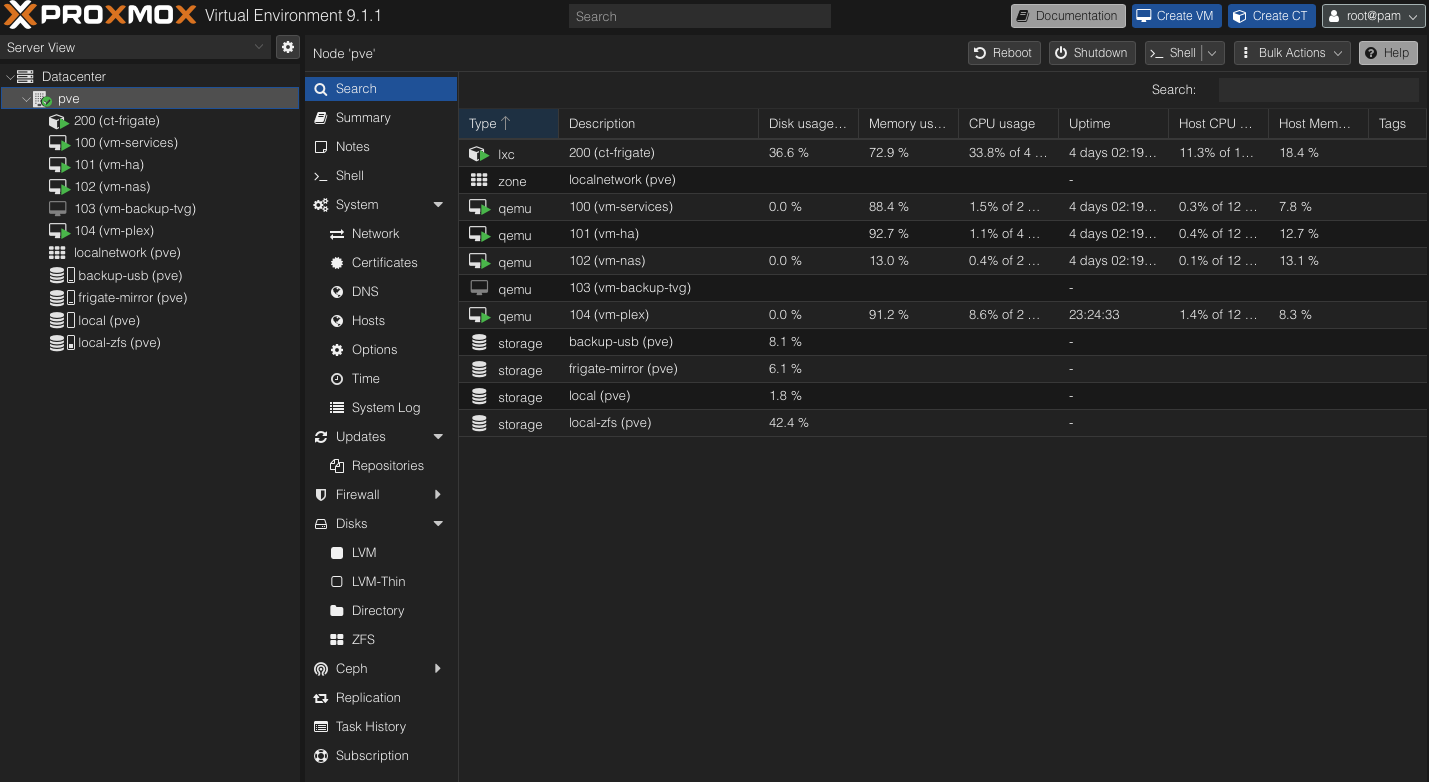
The professional environment brings together development tools, file services and the applications I use for work. The home environment looks after the services of the house, local storage and media. Both screenshots show Proxmox Virtual Environment 9.1.1.
| At the time of this article | Professional | Home |
|---|---|---|
| Configured virtual machines | 9 | 5 |
| Configured LXC containers | 0 shown | 1 |
| Running guests | 7 VMs | 4 VMs + 1 container |
| Stopped virtual machines | 2 | 1 |
| Storage targets listed | 7 | 4 |
These are inventories, not hardware specifications: a configured VM may be stopped, and several storage targets can refer to different uses of the same underlying disks.
The hardware behind the dashboard
The professional machine uses an Intel Core i5-6600K: four cores and four threads. The home host has a newer i5-12500, with six cores and twelve threads. The professional server has about 32 GB of RAM, while the home server has about 24 GB. The division follows the role of each machine, while the newer processor at home leaves room for its mix of automation, media and video-processing workloads.
| Hardware inventory | Professional | Home |
|---|---|---|
| Processor | Intel Core i5-6600K, 3.50 GHz | Intel Core i5-12500 |
| Cores / threads | 4 / 4 | 6 / 12 |
| RAM, approximately | 32 GB | 24 GB |
| Rotating hard drives | 2 × 12 TB + 2 × 10 TB | 2 × 8 TB + 2 × 500 GB + 2 × 1 TB + 1 × 5 TB USB |
| SATA SSDs | 3 × approximately 250 GB | 2 × approximately 250 GB |
| NVMe SSDs | 2 × 250 GB | — |
| Physical drives listed | 9 | 9, including the USB drive |
Capacities are rounded for readability. The drive counts include physical disks only.
The professional side
GitLab has its own VM, alongside separate machines for Nextcloud and file sharing. This keeps source-code management and document services distinct, even though they run on the same physical host.
Another VM runs the application for generating heating system inspection and maintenance logbooks, described in Speed up your workflow with Python. It is a good example of a small application that deserves a defined place in the infrastructure: its records and configuration matter just as much as the code that produces a PDF.
The static-web VM hosts websites and web applications. In that environment, Docker groups the application dependencies, while Nginx and Caddy serve the relevant content. A separate proxy VM handles routing, and another VM is dedicated to Proxmox Backup Server. The older WordPress and personal-website VMs are still listed but stopped in this snapshot.
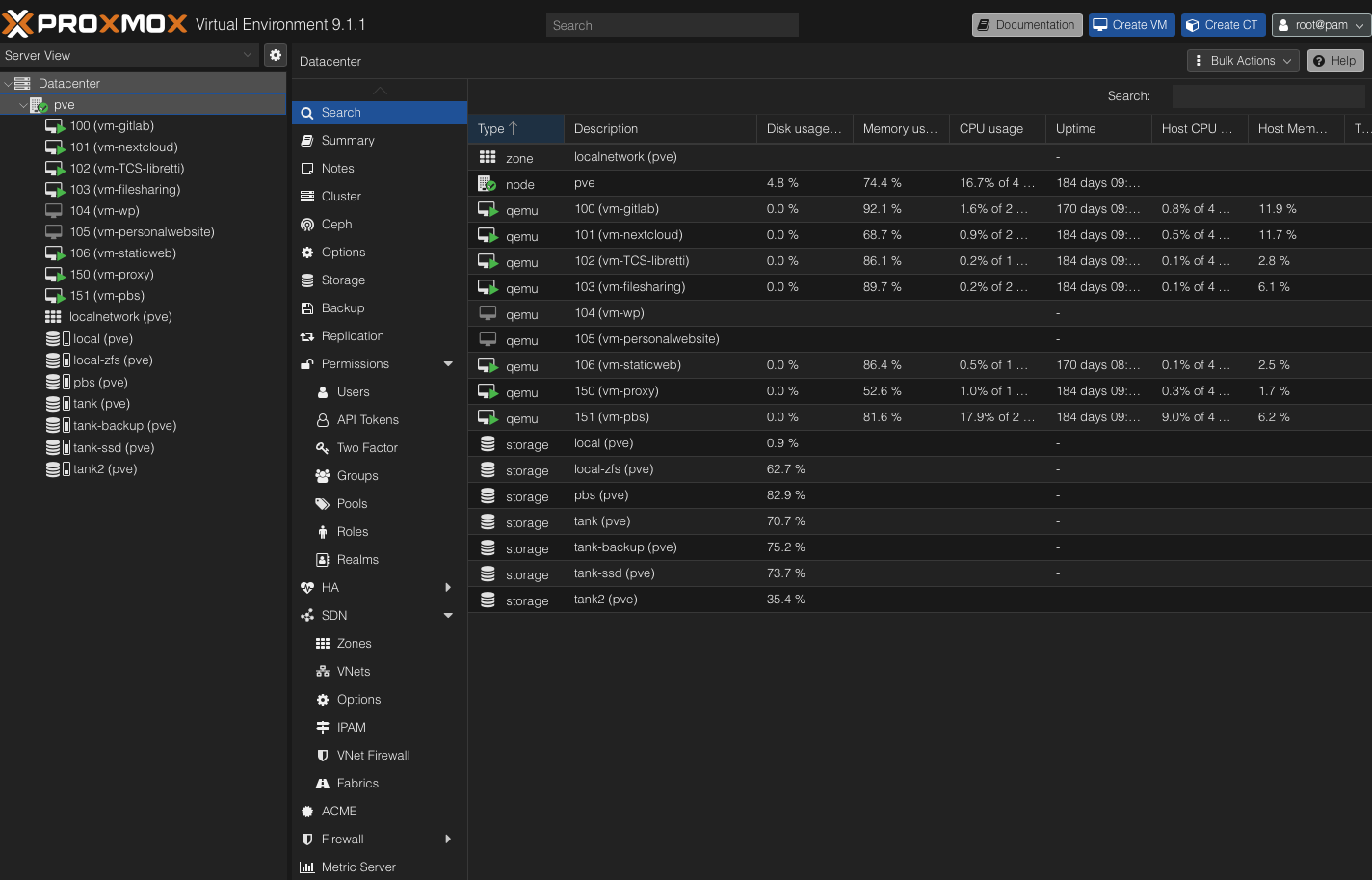
Several professional guests show uptimes of around 184 days in this screenshot: a quiet stretch of everyday work behind a fairly busy dashboard.
The home side
At home, the services are different: a general services VM, Home Assistant, a NAS VM and Plex. Frigate runs in an LXC container, handling camera streams and object detection.
Frigate benefits from hardware designed to accelerate AI inference and video processing. That is one reason for choosing the i5-12500: its integrated Intel UHD 770 graphics can accelerate object detection through OpenVINO, while Quick Sync supports hardware video processing. This makes it a good fit for an efficient, always-on home server, with acceleration available without adding a separate graphics card. Video decoding and object detection use different parts of that workflow.
This is where the distinction between a service and a machine becomes useful. Home automation, video processing, storage and media playback do not all have the same resource requirements. Giving them separate environments makes it easier to see which workload is using memory or CPU, and to work on one without rebuilding the others.
Give each layer a job
Proxmox manages the virtual machines and LXC containers. Inside the web VM, Docker manages individual applications. The reverse proxy provides the route into the appropriate web service. These layers are useful because each has a specific responsibility.
flowchart TB
    subgraph Professional[Professional Proxmox host]
        Git[GitLab VM]
        Files[Nextcloud and file-sharing VMs]
        App[Heating-system logbooks VM]
        Proxy[Proxy VM] --> Web[Static-web VM]
        Web --> Docker[Docker application containers]
        Backup[Proxmox Backup Server VM]
    end
    subgraph Home[Home Proxmox host]
        Services[General services VM]
        HA[Home Assistant VM]
        NAS[NAS VM]
        Plex[Plex VM]
        Frigate[Frigate LXC]
    end
The diagram groups the workloads by their physical host, keeping the professional and home environments distinct.
Storage is part of the architecture
The professional host separates system disks, bulk data and SSD storage. Its main layouts are straightforward:
| Role | Disks and layout |
|---|---|
| System | 2 × approximately 250 GB NVMe, mirrored |
| Main data | 2 × 12 TB HDD, mirrored: approximately 12 TB usable |
| SSD data | 2 × approximately 250 GB SSD, mirrored |
| Additional storage and local backups | 2 separate 10 TB HDDs |
At home, the system uses a pair of approximately 250 GB SSDs in a mirror. Frigate has a separate mirror of two 1 TB HDDs, and a 5 TB USB drive provides another backup destination. The remaining disks serve the wider home storage setup.
Part of the home infrastructure also receives backups from the professional environment. Keeping those copies on the other host adds a recovery destination beyond the machine running the original services.
For this website, the arrangement is particularly simple to see: the static pages are delivered by Cloudflare Pages, while larger media files come from my web server. A dedicated SFTP account uploads those files, without needing access to the Docker daemon.
These boundaries also help with security. Dedicated VMs separate services, while dedicated users, access keys and controlled permissions keep access tied to the task. The media uploader, for example, can transfer files without managing containers or the rest of the server. Together with backups between the two environments, this makes the infrastructure easier to maintain and limits how far an individual account needs to reach.